FPP
E-mail:
Our FPP software has a feature which allows you to easily send us a client file that you are working on, along with your question about that client file. We will provide you with an answer via email. As a security measure, your client’s name, address, and social security numbers are not included in the client file forwarded to us, and it will be transmitted to us over the internet using a secure protocol with encryption. Lumen Systems has been using this feature successfully since 2005, and we have found it to be very helpful for our customers.
To send us a file, open FPP, select the client file you are working on, and from the FPP menu choose “Help,” and then “Send File to Tech Support,” enter your name, phone number, email address, and your question, then select OK – it’s that simple.
If you have a question that is not related to a specific client, you may send your question to
Check license status
To pay your FPP Subscription invoice click here.
Download links:
- Click on the following link to Download FPP 2026.1.
https://www.lumensystems.com/distributions/winfpp2026.1/setup.msi
- The Release Notes are available by clicking on the following link. You may want to read them prior to downloading the new release.
https://www.lumensystems.com/distributions/winfpp2026.1/releasenotes.pdf
- Installation Instructions can be read in Adobe PDF format by clicking on the following link. Or you may want to print out the instructions for easy reference.
https://www.lumensystems.com/distributions/winfpp2026.1/installation.pdf
|

|
|
Download security:
- You can be confident in the safety of downloading the setup files for FPP. The Microsoft Edge and Google Chrome browsers scan all downloaded files for viruses and malware.
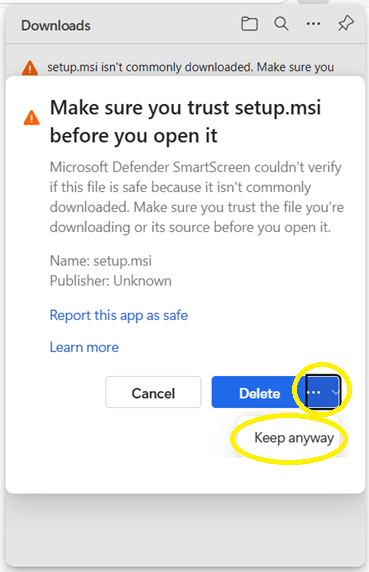
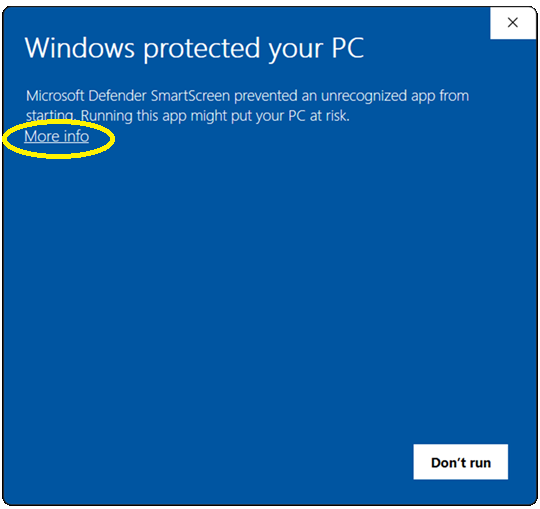
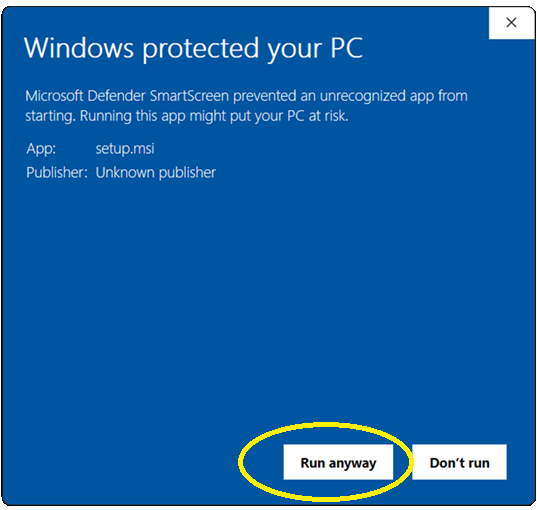
- You many encounter security warnings from your browser, Microsoft Windows Defender, or your antivirus software when downloading and installing FPP. Some steps to proceed are shown here but your situation may look different.
However, the general steps to proceed are the same. First, allow your browser to save the downloaded file. Second, allow Windows to run the setup file.
If you have security concerns about the warnings you can right-click on the
downloaded setup.msi file with your mouse and select the necessary options to have the file scanned with the antivirus software on your computer.
-
Microsoft Edge may present a warning while downloading the file. You can select the menu items as shown here to allow the download.

-
Microsoft Windows may present a warning about running software from an unknown publisher. You can select the links/buttons as shown here to allow the setup file to run.
|